
We have all the answers here
Frequently Asked Questions
Hangry is an app that connects foodies with food trucks and street vendors, and helps businesses promote their offerings. Users can locate vendors, explore menus, and read reviews, making it easy to discover delicious food on-the-go.
Hangry is a free mobile app that connects foodies with food trucks and street vendors in their area.
In the near future, Hangry will also offer the convenience of online ordering, making it even easier for users to satisfy their cravings from their favorite vendors. With Hangry, foodies can look forward to an even more seamless and convenient food ordering experience.
To search for vendors in your area, simply open the app and browse the list of nearby options, or use the search function to look for specific types of cuisine or vendors. Once you've found a vendor that catches your eye, you can view their menu, hours of operation, amenities, location, and reviews. With Hangry, discovering new and delicious food options has never been easier.
The information displayed on the app is managed directly by the vendor owners themselves. This ensures that the information provided to users is accurate and up-to-date, as it is coming directly from the source. With Hangry, foodies can trust that the information they are viewing is being managed and updated by the vendors themselves, giving them the confidence to make informed decisions when choosing a place to visit.
When users come across a vendor they love, they can simply "favorite" them by tapping a heart icon on the vendor's profile. This will add the vendor to the user's list of favorites, which can be accessed at any time from the app's main menu. With the Favoriting feature, users can quickly find their favorite vendors without having to search for them each time they use the app. It's a convenient way to keep track of your go-to food options and never miss out on a delicious meal from your favorite vendor.
We are always looking to add more and more food trucks and street vendors to our platform. Please contact us through any of our social media platforms and we will reach out to them, or you can let them know about us. Hangry is a user-friendly app that makes it incredibly easy to get started.
Creating a Vendor account is as easy as following these steps.
Under "Account" tap on "Create Vendor Account"

Enter the your Business name, Taxpayer ID and email then tap on "Next". *Note we are currently only serving Texas and the Taxpayer ID is a 11 digit number required to validate the business.

Select a business profile picture from your Gallery or take a picture using your camera. We recommend using your logo or a picture of your establishment.

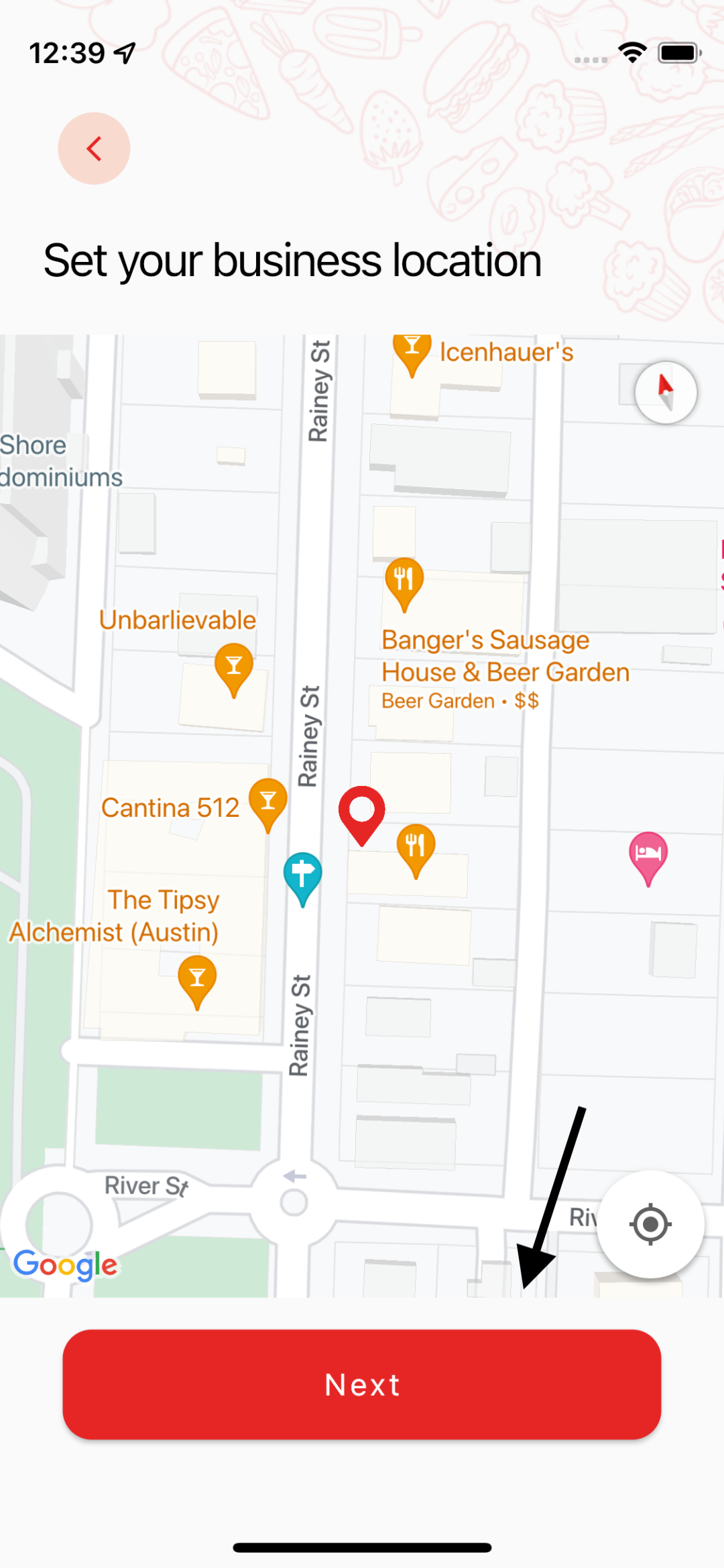
Set your business location by placing the pin at the correct location. Remember that this is how customers will find you.
Enter your business phone number. Note that this number will be accessible to your customers in case they want to reach out and ask any questions about your business.

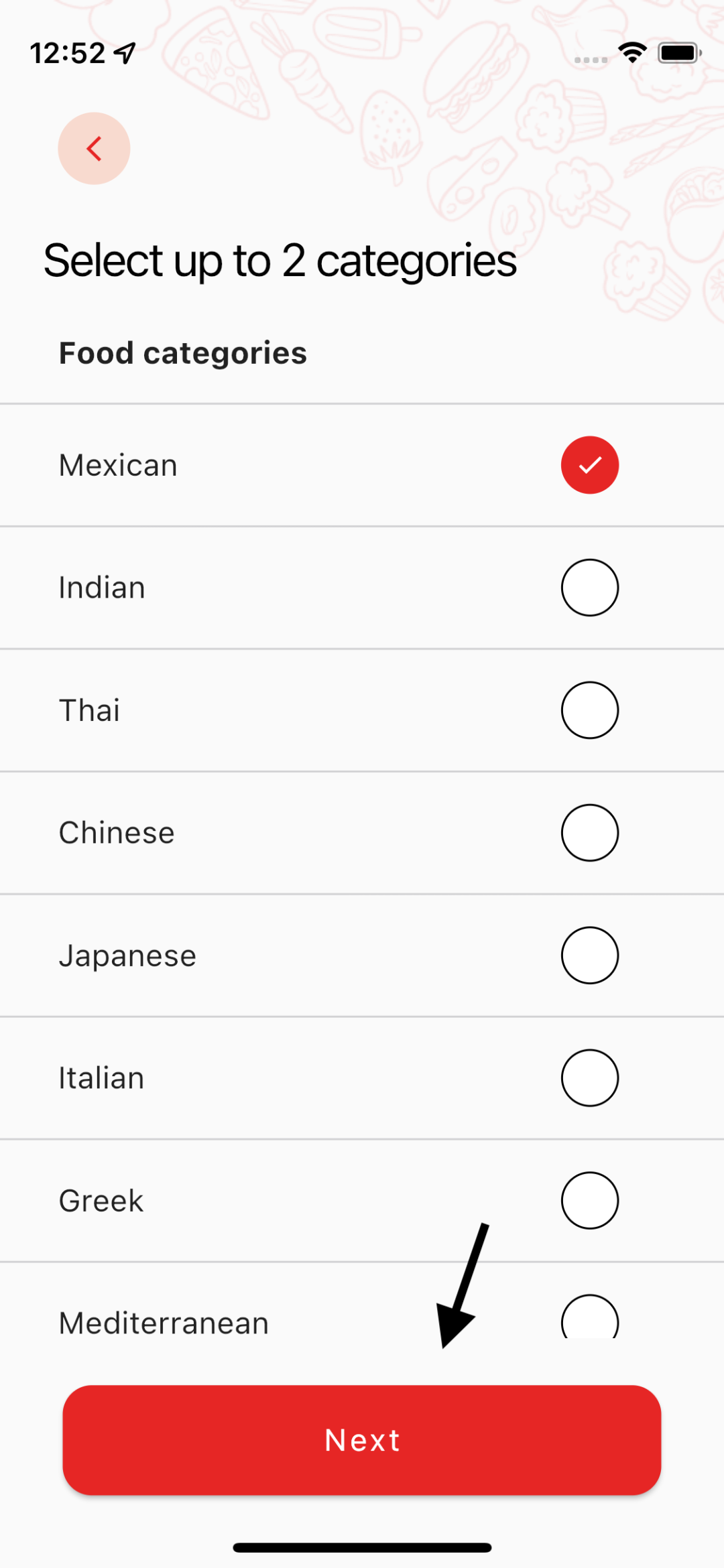
Select the category or cuisine your business falls under. You can select up to 2 categories.
Set the price range and payment methods. Let your customers know on average how much a meal will cost and the payment methods you accept.

Set your hours of operation. Your customers will know when you are open and when you are close based on this information. Make sure to update as accordingly.

Does your business offer any of these amenities? Please make sure to let your customers know about this information.

Lastly, review all the information provided so far and fix mistakes if there are any. Once ready tap on "Confirm"

Congratulations! You have officially created your Hangry Vendor Account.

To update your location, just follow these steps.
Under "Account" tap on your business profile box.

Look for the "Business Location" section and tap on the Edit icon.

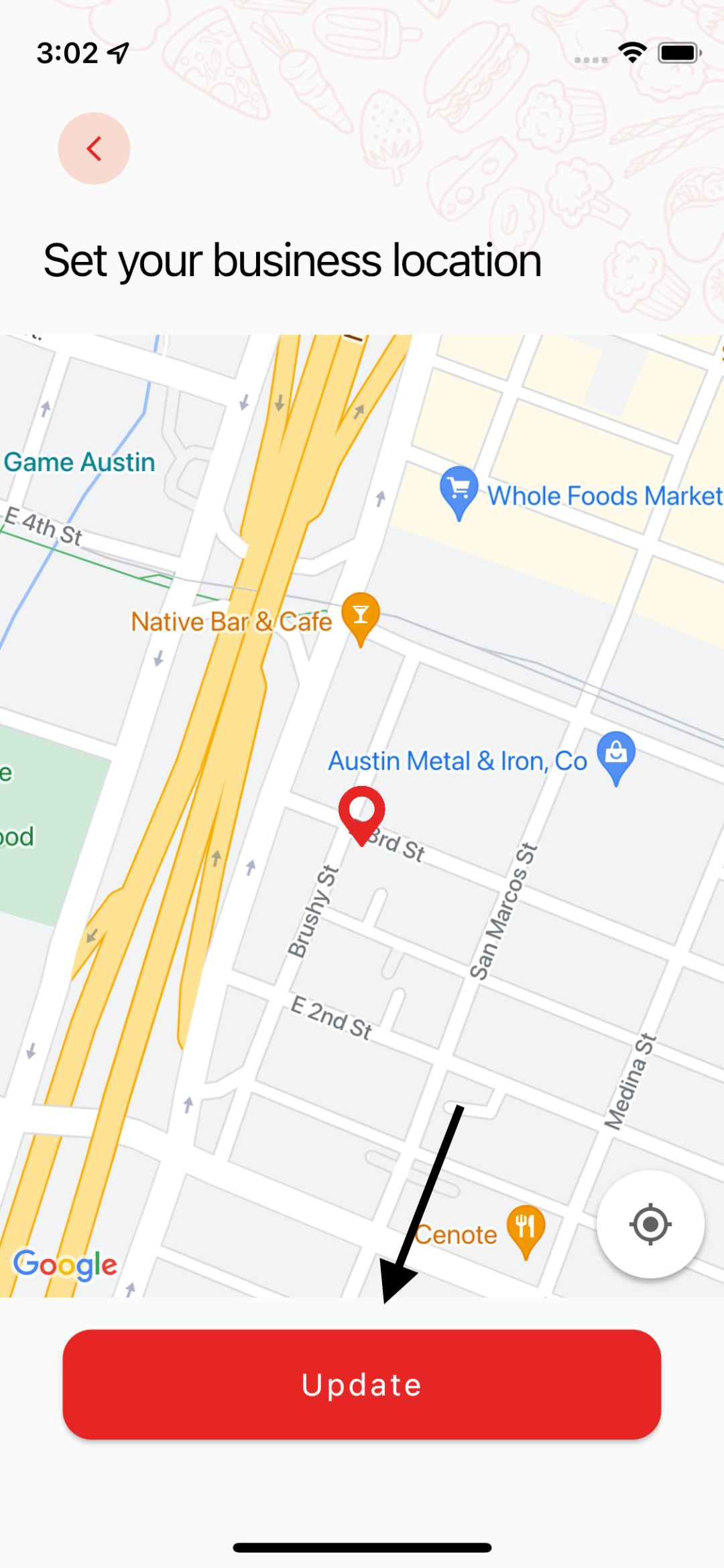
Set your business location by placing the pin at the correct location. Remember that this is how customers will find you. Tap on "Update" to save the new location.
If your hours of operation have changed or you had to close early, it is highly recommended to update this information in order to keep your customers informed. To make these changes, just follow these steps.
Under "Account" tap on your business profile box.
Look for the "Business Hours" section and tap on the Edit icon.

Set your new hours of operation by tapping on the toggle to indicate if you are "Open" or "Closed" and then tapping on the time frame box and choosing your range of hours. Once you are done, simply tap on the "Update" button.

With Hangry, you have full control over your menu. Follow the following steps to create your menu categories and menu items.
Under "Menu" tap on "Create a menu category".

Name your menu category. Ex: Breakfast, Lunch, Drinks, Appetizers, etc. Then tap on "Confirm".

Tap on "Create a menu item" section.

Select a picture from your gallery or take a picture using your camera. Provide a name and a description for the item. Tap "Next" to move on.

Set the price for this menu item and tap on "Next" to move on.

Review the information and edit anything if needed. Once you are ready to move on, tap on the "Confirm" button.

Repeat these steps for all of your menu categories and menu items. You can always go back and edit any menu categories and menu items as needed.
